Grinding setups and shop library

Every job starts from what you already know.

Your machines, wheels, setups and past runs live in Abrasor. The next job begins from them, not from a blank page.
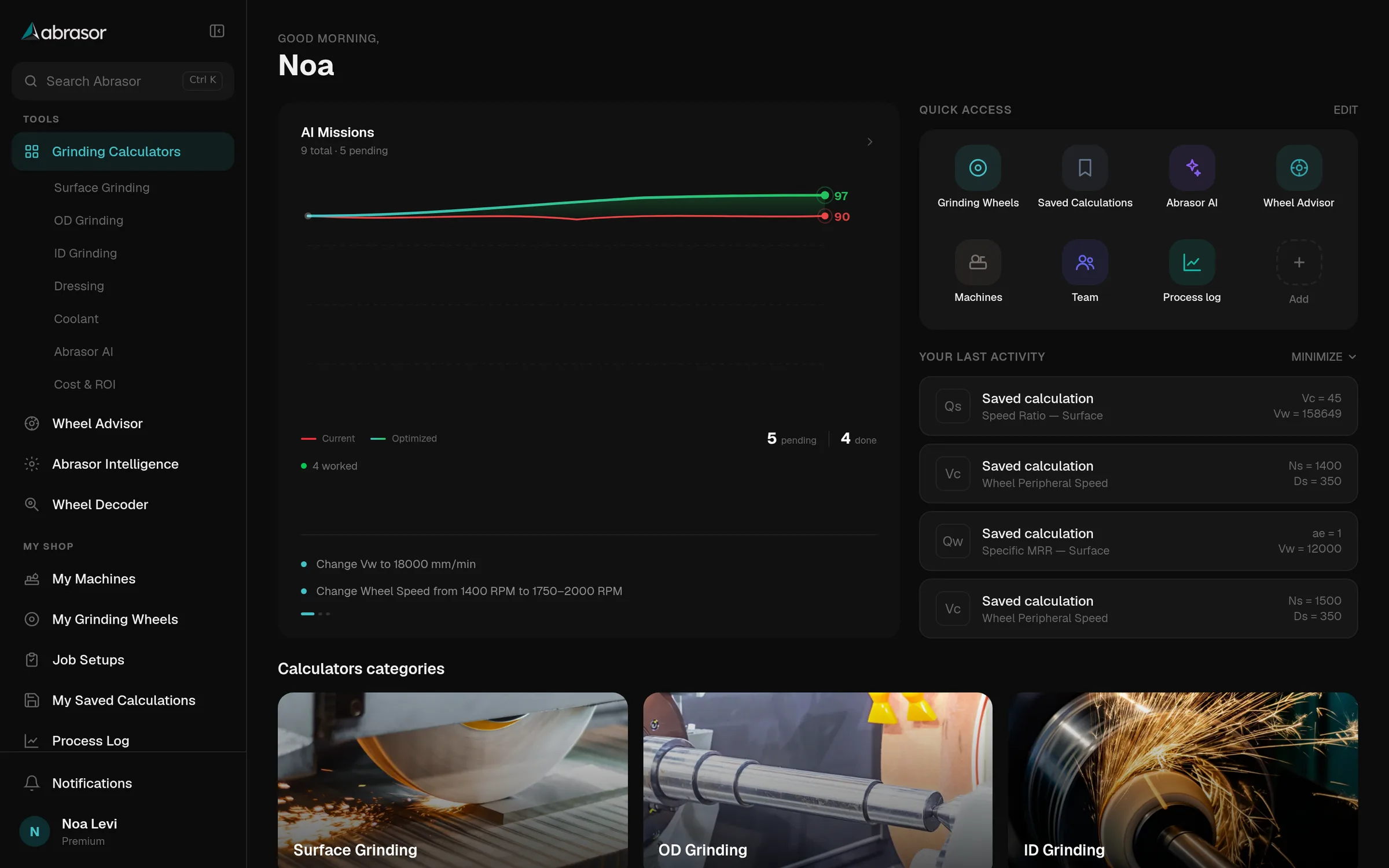
The Abrasor home screen on a desktop: AI Missions chart, quick access to grinding wheels, machines, team and process log, and recent saved calculations

Enter it once. Every tool uses it.

Your grinders and wheels sit in Abrasor with their limits. Calculators, advisor, setups and the AI all read the same records.

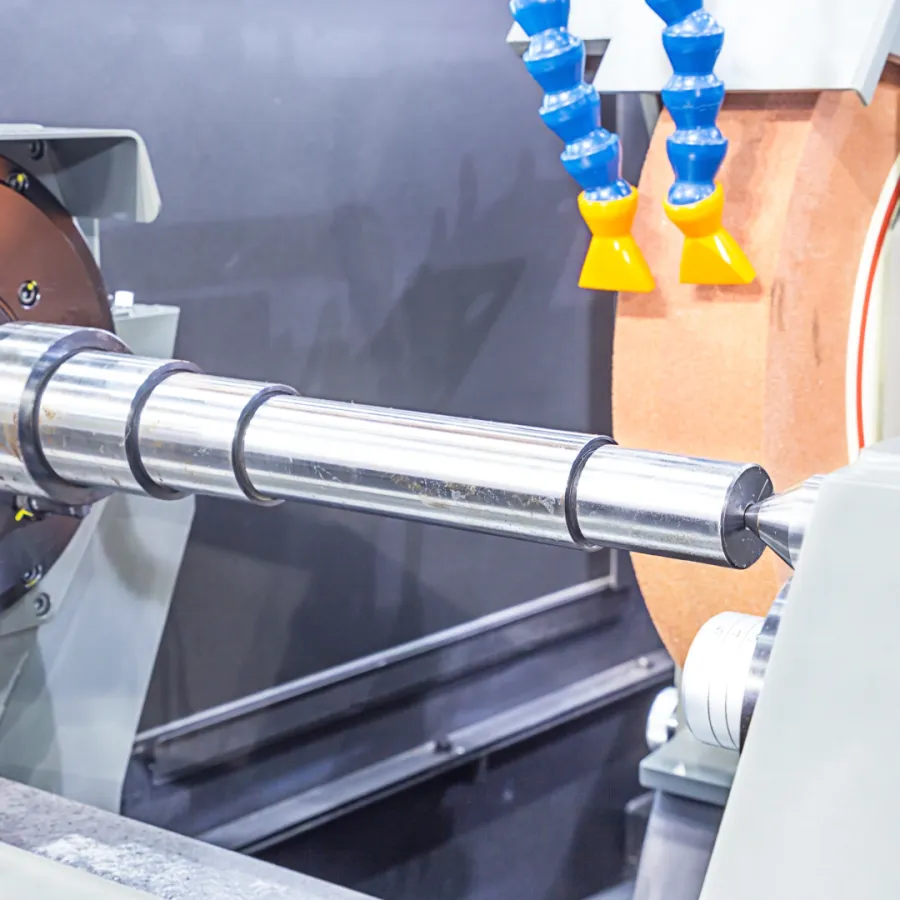
A shaft held between centres on a cylindrical grinder

My machines

Your grinders and their limits.

A grinding wheel being dressed

My grinding wheels

Your wheel library, with specs and maximum speed.

  • CalculatorsLoad wheel fills in the diameter and speed limit.
  • Wheel AdvisorPick one of your machines as the last, optional question.
  • Job setupsSpeeds stay inside your wheel and machine limits.
  • Abrasor IntelligenceKnows your machines when it answers.

Describe the job. Get the setup sheet.

Tell Abrasor what you are grinding. It brings back the wheel, speeds, infeed, dressing and coolant on one page, with the reasons.
What you tell it

  • Operation
  • Material and grade
  • Hardness
  • Part size
  • Stock
  • Finish
  • Tolerance
  • Batch
  • Wheel, yours or recommended
  • Machine
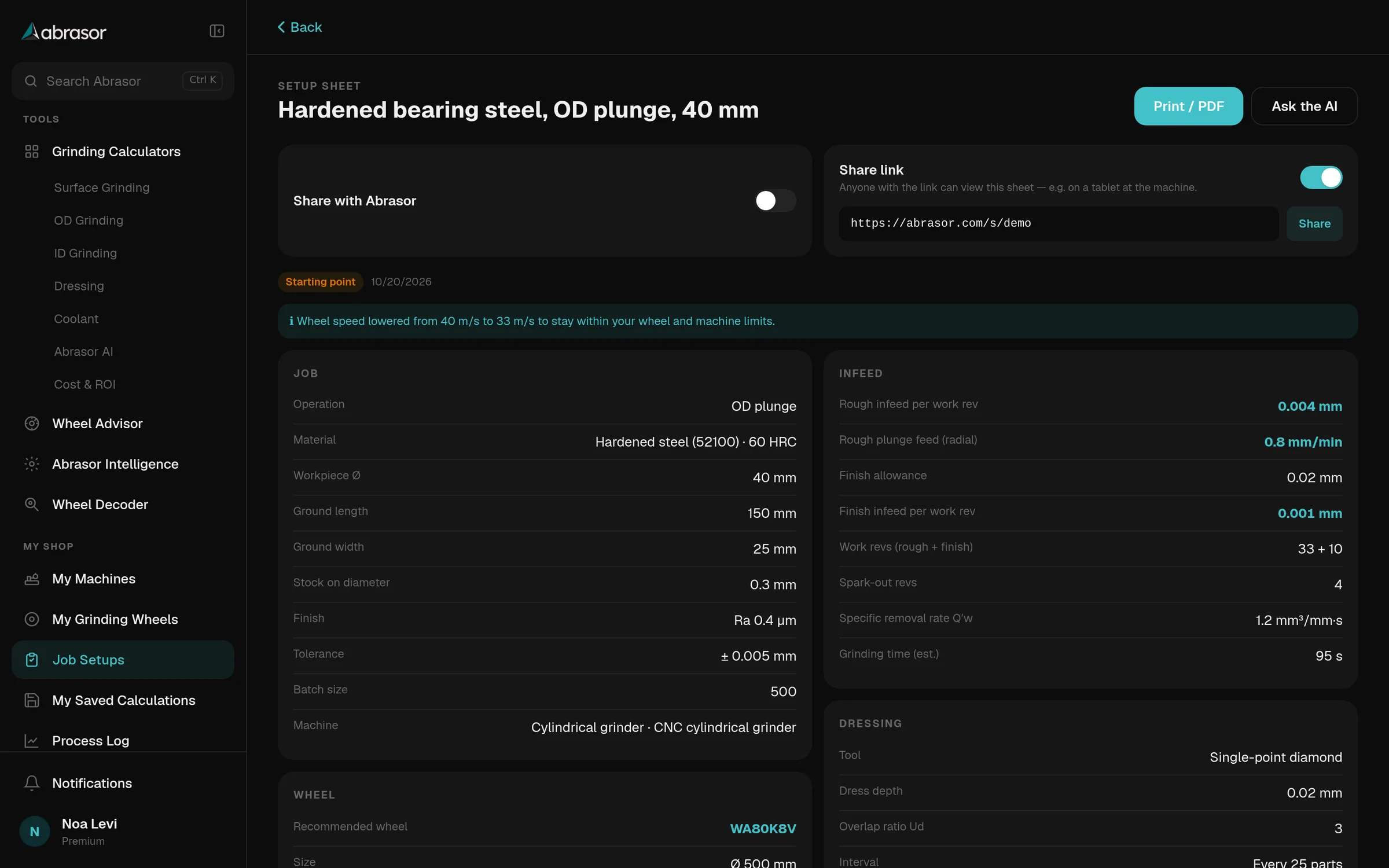
An Abrasor setup sheet for an OD plunge job on hardened bearing steel: job details, infeed, dressing, the recommended wheel WA80K8V and a share link

On the sheet

Wheel
The recommendation, and why it fits the job
Speeds
Wheel speed and work speed
Infeed
Rough and finish depth, passes, spark-out and plunge feed
Removal and time
Removal rate and cycle time
Dressing
Tool, depth, overlap and interval
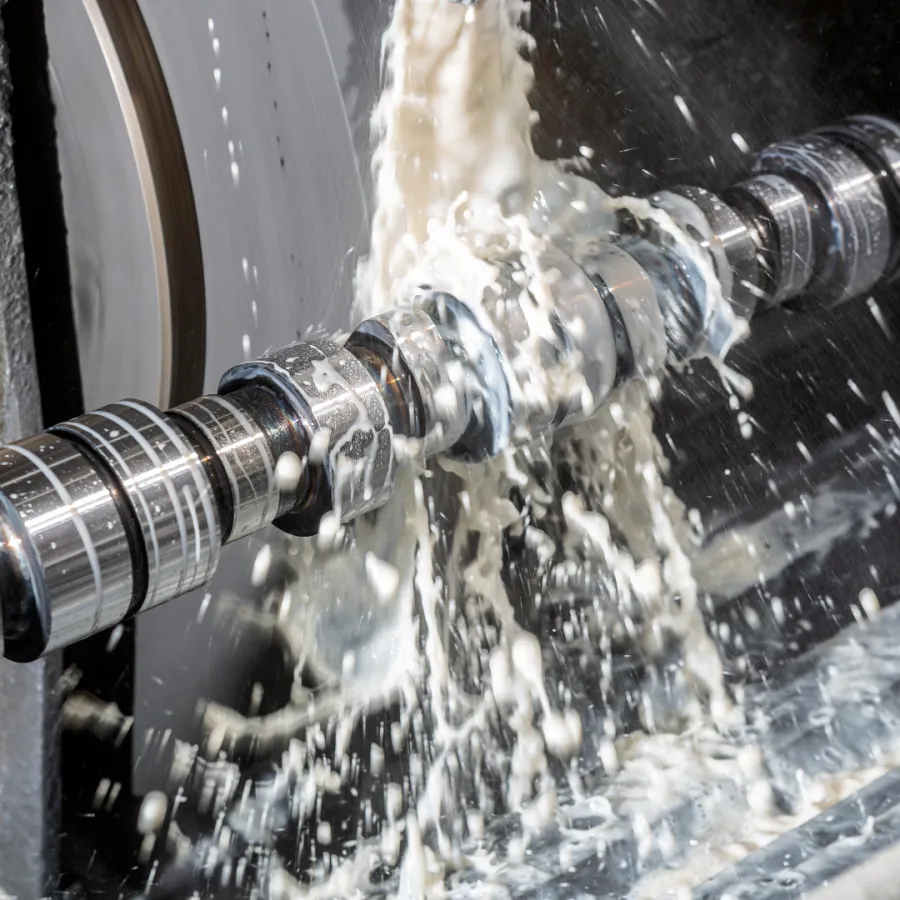
Coolant
Type, concentration, pressure, flow and nozzle
Watch-outs
What to look out for, and the assumptions behind the numbers
Wheel speed lowered from 40 m/s to 33 m/s to stay within your wheel and machine limits.

Speeds are lowered automatically, and the sheet tells you when it happens.

Take it to the machine

  • Print or PDFA clean page for the job folder.
  • View-only share linkOpen the sheet on a tablet at the machine.
  • Share with your teamThe next shift starts from the same sheet.
  • Ask the AIPut a question about the sheet to Abrasor Intelligence.

Creating a setup uses 1 AI query.

Keep what worked. Log what happened.

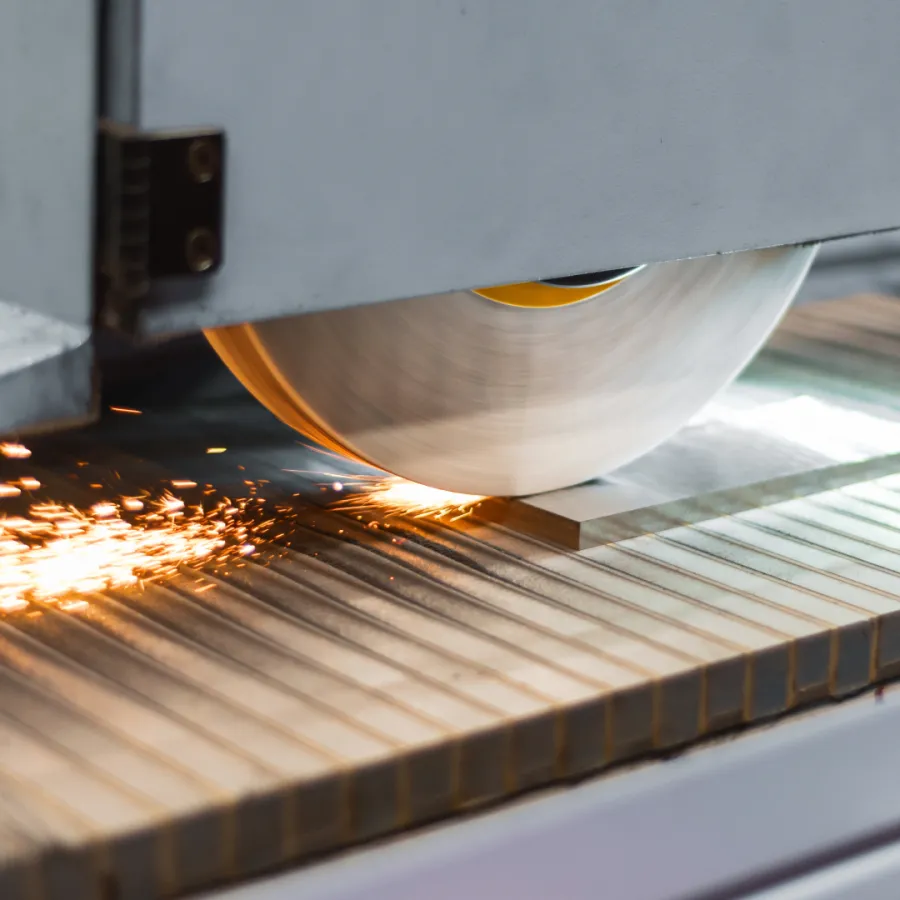
Save calculations by project and log every run by job. When the part comes back, the numbers are already there.
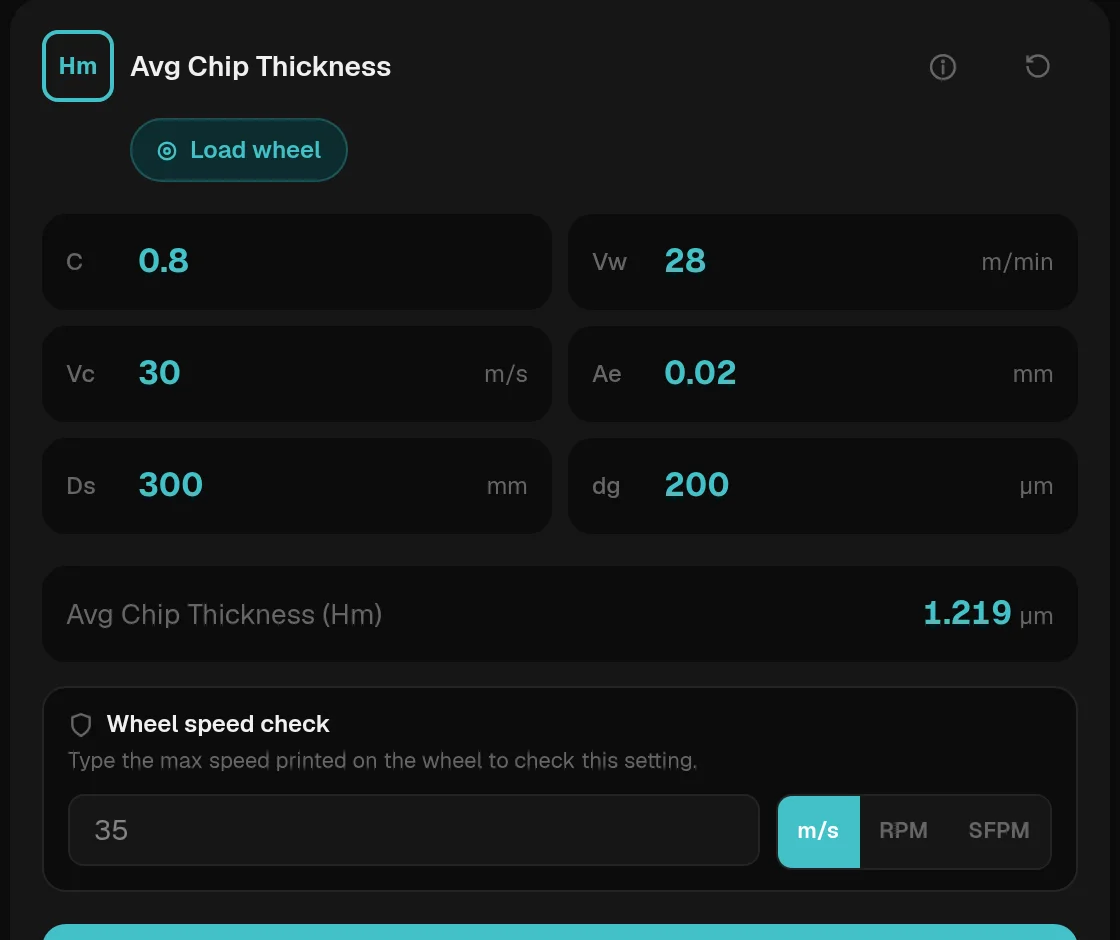
  • Saved calculations in projectsGroup them by job and open them again at the machine.
  • Before and afterCompare two saved calculations and export a PDF.
  • Process logLog each run per job and see that job's charts.
  • Export CSVTake the log into your own spreadsheets.
A saved calculator card: average chip thickness with its inputs, the result and a wheel speed check

One library for the whole shop.

Share wheels, machines and setups with your team, so every shift works from the same records.

  • Wheels
  • Machines
  • Setups

Teams come with Enterprise, and everyone you invite gets Premium access.
Compare plans

Team rolesWho can change what
  • Admins

    Manage the people on the team.

    Manage people
  • Engineers

    Keep the shared wheels, machines and setups up to date.

    Edit library
  • Operators

    Open the shared library and use it at the machine.

    View and use

Shop-floor mode

Readable from across the machine.

A high-contrast display, black with cyan, with large numbers. Made for bright, busy workshops and a quick look between parts.
Hardened bearing steel, OD plunge, 40 mmWA80K8V
Wheel speed
33m/s
Rough plunge feed
0.8mm/min
Finish infeed per rev
0.001mm
Spark-out
4revs

Start the next job from the last one.

Open app